An Early Look at Synergy Dragon

An early look at Synergy Dragon
Synergy Dragon is out in alpha. The first build went out on 17 August 2026, and you can install it today if you have a Synergy account. It is early, so rather than sell you a finished product in advance, this post tells you exactly what works, what is broken, and what is still missing.
One thing before anything else. Dragon does not retire anything. Synergy 1 and Synergy 3 carry on and both keep getting updates. Dragon is a third app to try alongside the two you know, and nothing about them changes today.
The engine is the one you already trust
Dragon is a new Synergy desktop app, built from the ground up, but the part that actually moves your mouse and keyboard between computers is not new. Dragon runs the 1.21 beta core, the same core the Synergy 1 beta and the Synergy 3 beta run. Input sharing, clipboard and the encrypted connection all come from there and behave the way you already expect, and because all three apps share that engine, work on it lands in all three at once.
Everything around that core changed. In Synergy 1 you pick a server and describe where every other computer sits, and if you ever want a different computer to be the server, you set that up again on the new one. Dragon turns all of that into a single step. A computer enrolls once, and from then on the layout, settings and state of the network are shared across every computer. Move a screen around on your laptop and your desktop already knows. Coming from Synergy 3 this will feel familiar, because Synergy 3 already works this way. It is only a change if you are coming from Synergy 1.
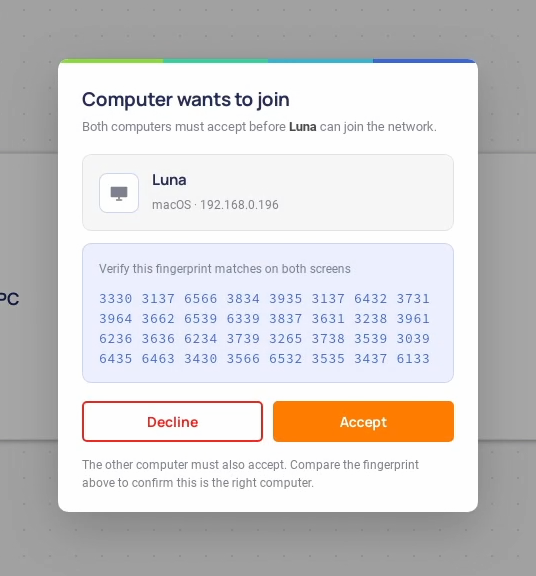
Pairing borrows from both of the current apps. Synergy 1 asks you to type in an IP address, and it shows a fingerprint on both computers so you confirm them before they trust each other. Synergy 3 skips the typing and finds your computers automatically. Dragon combines the two. Computers find each other on the local network on their own, and a new one joins once its fingerprint is confirmed on both sides. That is also a different trust model. In Synergy 3, computers trust each other because they share your serial key. In Dragon, trust belongs to the computers themselves, granted one at a time when you confirm the fingerprints match, so discovery is automatic and nothing is trusted on your behalf.
What is actually new
Files first. Drop a file onto another computer in the layout view and it is sent there, with progress shown while it transfers.
It works, but it is not finished. The receiving computer shows that files arrived, then puts them in an internal folder nobody would think to look in, without saying where that is or letting you choose. The fix is to ask the receiver whether to open the file or save it somewhere they pick, and remember the answer. Until that ships, treat it as working plumbing with no signposting.
Config profiles. Keep more than one setup and switch between them from the profile chip in the window header. One for the office, one for home, no rebuilding your layout twice a week.
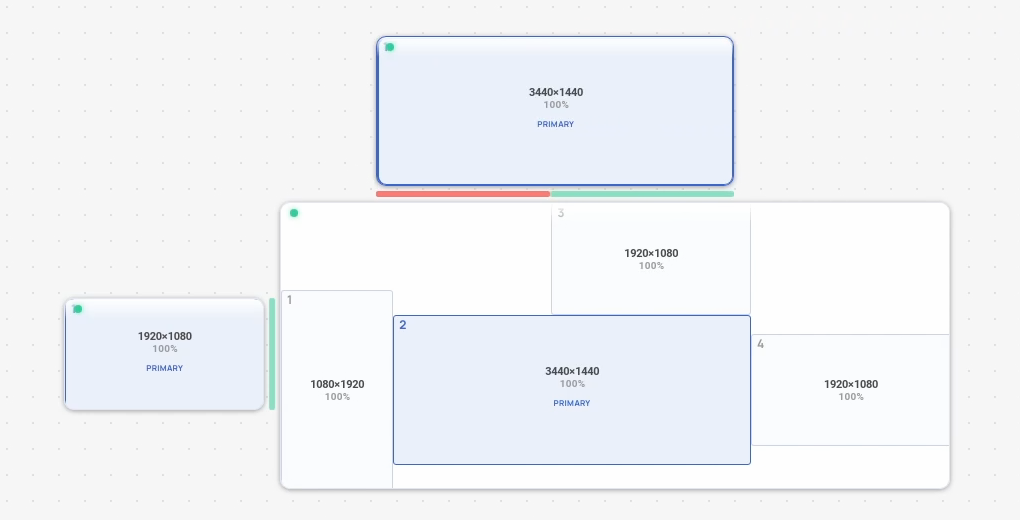
The layout is a proper canvas now, and it shows your real screens. Each computer's card is its actual monitor arrangement as the operating system reports it, drawn to scale, portrait screens and odd offsets included. Drag computers into position and pan and zoom around, and the bar along a shared edge shows green where the pointer can cross and red where it cannot, so you see exactly where the transition will happen before you try it.
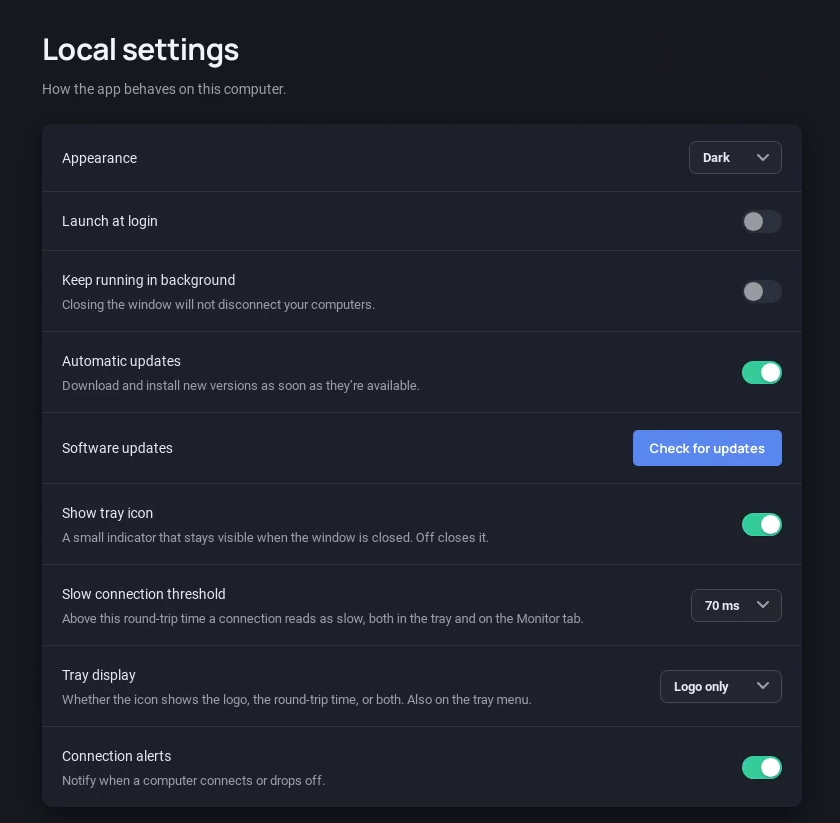
Then there is dark mode. Synergy 1 has had one for a long time, and it never made it into Synergy 3, a gap people have rightly teased us about. Dragon has it from the first build. It follows your system, or you can pin it to light or dark in settings. And once Dragon reaches a stable release, we plan to bring the same dark mode to Synergy 3.
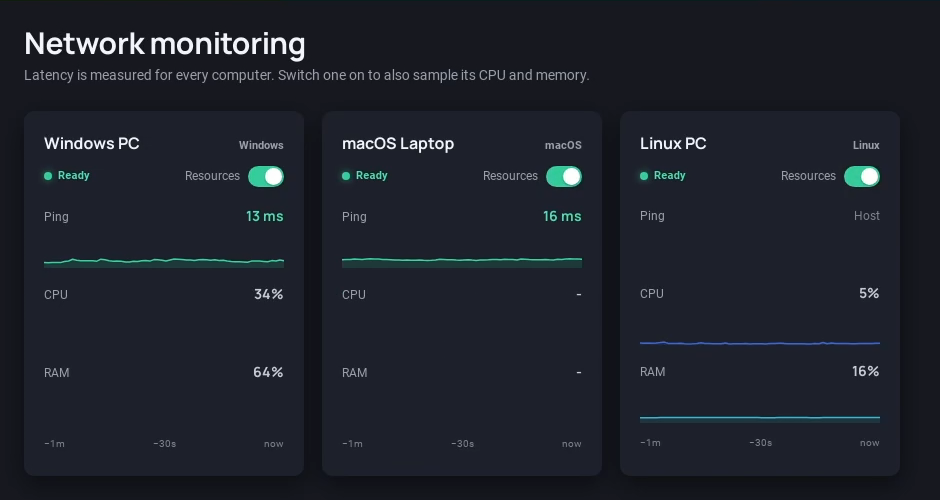
The Monitor tab shows every computer on the network with a live graph of its ping, and you can switch any computer on to graph its CPU and memory too. The tray icon shows the connection at a glance, drawing the logo or a latency number, the slowest round trip on the network. And the Diagnostics tab shows live logs from every part of the app, with a speech bubble in the header that sends a bug report or feature request with the diagnostics bundle attached.
Dragon also talks to Synergy 1 in both directions. Let Synergy 1 clients connect to a Dragon network, or run a Dragon computer as a Synergy 1 client, which covers the machines auto discovery cannot reach. To be upfront, the same is not planned for Synergy 3. Its protocol is a much more involved thing to bridge, so a Dragon computer and a Synergy 3 computer will not share a network.
And when a new build is out, the app tells you, downloads it, and updates when you click restart.
Credit where it's due. Settings sync and swapping which computer is primary both appeared in Synergy 3 first. Dragon builds on those ideas rather than inventing them.
The one big thing we are fixing before Dragon grows up
Today, every computer in a Dragon network has to run the same build. Update your desktop and not your laptop, and the two stop working together until they are back on the same version. For an alpha that updates often, that stings.
Synergy 1 shows how it should work. It owns its wire protocol, has only ever grown it by adding messages, and has the newer computer serve the older one at the older one's version. That is why a Synergy 1 build from 25 years ago still shares a desk with one from today, so long as settings the old build predates, like TLS, are compatible on both sides. Running old hardware next to new hardware is most of the reason people buy Synergy, so Dragon has to hold itself to the standard Synergy 1 set.
We are replacing the alpha's replication with a protocol we own and version ourselves, following the same rule. Two computers agree on what they can do together when they first meet, not on whether one of them is allowed in. Nobody gets turned away. An older computer joins and keeps sharing keyboard and mouse, and anything it is too old to take part in is named on screen instead of failing silently. That work is underway now and is the main thing in the next alpha.
The settings gap
Dragon exposes far fewer settings than Synergy 1 or Synergy 3. It is the feedback we expect to hear most, and it is feedback we are fixing anyway.
There are no hotkeys yet. Nothing in Dragon binds a key to anything, while Synergy 1 and Synergy 3 both have full hotkey editors. There are no per-computer settings, so modifier remapping, dead corners, half-duplex lock keys and extra aliases are all missing. A run of single toggles is missing too. Prevent sleep, keyboard language sync, inverted and scaled scrolling, and reconnection backoff. You will also find settings that are visible but disabled and marked coming soon, including launch at login, keep running in the background, and changing the port.
None of this is a limitation of the engine. Core supports all of it today. Dragon rebuilt its settings model instead of porting the old one, and settings are coming back screen by screen, including the choice between all-users and current-user settings.
Bugs you will actually hit
Most of the ones we know about are on Linux, and Wayland specifically. Our Linux packages ship a core built without Wayland clipboard support, so the clipboard does not transfer on a Wayland desktop, and the input capture permission is forgotten between restarts. Dragging a file onto the layout under Wayland opens the file in the window instead of sending it. The packages also do not declare their Qt dependency, so core will not start on a machine without Qt installed.
The rest are smaller. Every monitor tile in the display layout is labeled primary, whichever computer it belongs to. The primary computer shows no latency reading of its own, and monitoring stops on secondaries while any computer is offline. On an installed Windows build, the status bar can flip between sharing and starting while sharing works fine. Windows can also leave a stray cursor behind when the pointer leaves a screen.
What is next
Beyond version compatibility and the settings backlog, the next stretch is about the edges of sharing. Sort out where incoming files land. Attach a screenshot to in-app feedback. Nudge a monitor's physical size in the layout so the cursor lines up when it crosses between screens of different sizes. Test every build against the oldest supported release in CI, so compatibility stops being a promise and becomes a test.
Further out, we are exploring ideas like your phone joining the network for clipboard and files, and a web page that checks whether two computers can reach each other before anyone buys anything. No promises on those yet.
Try it
Two practical notes. Alpha builds expire 90 days after they were built, and the app tells you when that happens. Update to a newer build and it carries on. And Dragon installs alongside Synergy 1 or Synergy 3 on the same computer. Just make sure only one of them is running at a time, because they share the same port.
The download page and the release notes are both up. Dragon is for existing Synergy customers at this stage, so you need an active account to get the build.
Alpha means alpha. Things will break, the settings you want are probably listed above, and both lists should get shorter with every release.